If you want to export LinkedIn connections to CSV, this step-by-step guide covers everything you need. You will learn how to use LinkedIn's built-in export tool, why emails are almost always missing, and how a free Chrome extension by WebVisionsPro solves that problem by collecting emails and phone numbers automatically — something LinkedIn's own export cannot do.
Ready to Export Your LinkedIn Connections?
Download the free LinkedIn Scraper extension and start collecting emails, phone numbers, and contact data from your connections — automatically.
Download LinkedIn Scraper — FreeNo account needed · Chrome extension · Built by webvisionspro.com
Why Export LinkedIn Connections to CSV? 5 Powerful Reasons
LinkedIn keeps your network data locked inside its platform. Fortunately, when you export your LinkedIn connections to a CSV file, you gain full control over your own network. Here is why thousands of professionals choose to do it every week:
- Lead generation — Turn your existing connections into a targeted outreach list without starting from zero.
- CRM import — Push contacts directly into HubSpot, Salesforce, Zoho, or any CRM that accepts CSV.
- Email campaigns — Build a verified contact list from people who already know your name.
- Network backup — Keep a personal record before cleaning up or deactivating your account.
- Business development — Find warm prospects you connected with but never followed up with.
Method 1: How to Export LinkedIn Connections to CSV Using LinkedIn's Built-In Tool
LinkedIn provides a native data export feature that is available to every user at no cost. Therefore, this is usually the first method most people try. Below is the exact step-by-step process to download your LinkedIn connections as a CSV file.
Desktop only — LinkedIn's data export feature does not work on the mobile app. Consequently, you must use a desktop browser (Chrome, Firefox, Edge) to complete this process.
Go to Settings & Privacy
Log in to LinkedIn. Next, click the Me icon (your profile picture) in the top-right navigation bar. Then select Settings & Privacy from the dropdown menu.
Open the Data Privacy section
In the left sidebar, click Data privacy. After that, find and click Get a copy of your data.
Select "Download larger data archive"
You will see two options. Select Download larger data archive — this option includes the Connections.csv file. Finally, click Request archive.
Download the ZIP file from your email
LinkedIn will send a download link to your registered email address. This typically arrives within 10–30 minutes. Open the email, click the download link, and save the ZIP file to your computer.
Open Connections.csv in Excel or Google Sheets
Extract the ZIP file. Look for the file named Connections.csv inside. Open it in Excel or Google Sheets. If columns look misaligned, simply delete the first 3–4 rows of notes so the column headers sit on row 1.
What Data Does LinkedIn's Export Include?
The native export gives you six data fields for each connection:
- First Name
- Last Name
- Email Address (often blank — see the section below)
- Company
- Position / Job Title
- Connected On — the date you connected
The Big Problem With the Native CSV Export: Missing Emails
Only 10–20% of contacts will have an email address in the file. LinkedIn only includes an email for connections who have manually turned on "Allow connections to export my email" in their own privacy settings. This setting is off by default for every LinkedIn account — and most users never change it.
Why So Many Email Fields Are Blank in Your Downloaded CSV
In practice, if you have 1,000 connections, you might get only 100 to 200 email addresses. The rest of the email fields will be completely blank. As a result, LinkedIn's native export becomes nearly useless for email outreach or lead generation at scale.
Moreover, the export does not include phone numbers, website URLs, or direct profile links — all of which are valuable for sales prospecting and CRM work. In short, while the native export is convenient for a quick backup, it falls short for serious lead generation purposes.
The Solution: Collect Emails Directly From Profile Pages
The fix is straightforward. Instead of relying on LinkedIn's privacy-limited export system, a Chrome extension can visit each profile directly and collect all publicly available contact information. Consequently, you get far more complete data — including emails, phone numbers, and websites — all exported to a clean CSV file.
Method 2: Export LinkedIn Connections to CSV with the LinkedIn Scraper Extension (Free)
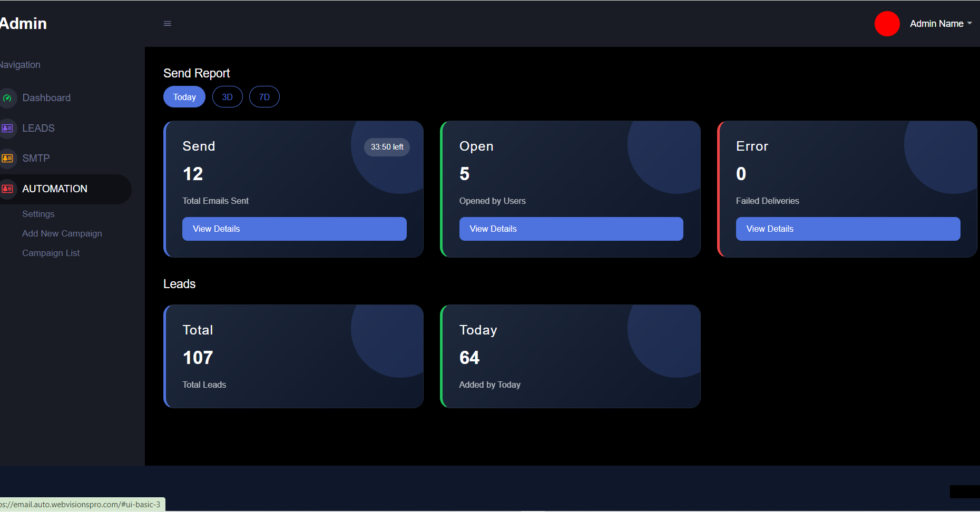
The LinkedIn Scraper extension by WebVisionsPro visits each connection's profile automatically and collects all publicly available contact information. Specifically, it gathers emails, phone numbers, and websites, then exports everything to a clean CSV file ready for immediate use.
Works inside your own browser — no third-party servers, no API, no account credentials shared. The extension uses your existing LinkedIn session exactly like normal browsing, just automated.
How the Extension Works Step by Step
Install the extension in Chrome
First, download and install the LinkedIn Scraper extension (see the download button below). The process takes less than 2 minutes.
Go to your LinkedIn Connections page
Navigate to linkedin.com/mynetwork/invite-connect/connections/ while logged in to LinkedIn.
Click "Run" in the extension
Open the extension popup and click the ▶ Run button. It automatically scrolls through your connections page to load all profiles first.
Let it collect data automatically
The extension then visits each profile one by one, opens the Contact Info panel, and collects name, title, email, phone, and website. A real-time progress bar shows you exactly where it is. Meanwhile, you can keep working in other tabs while it runs.
Download your CSV
When finished, click the ↓ CSV button. Your complete contact list downloads instantly as a spreadsheet — ready for CRM import or email outreach.
What Data Does the Extension Collect for Your CSV?
- Full Name
- Job Title / Headline
- Email Address — from the Contact Info section of each profile
- Phone Number — mobile numbers when publicly shared
- Website — personal or business website URL
- LinkedIn Profile URL — direct link to each contact's profile
Key Safety Features That Protect Your Account
- Human-like delays — Configurable 8 to 25 second pause between each profile visit to mimic normal browsing behavior
- Auto-break system — Automatic 15–25 second rest every 10 profiles to avoid LinkedIn's activity detection
- Resume function — Stop at any time and resume exactly where you left off — no data lost
- Seen URL database — Tracks already-scraped profiles so you never process the same contact twice
- Silent server sync — Collected leads are backed up automatically in the background
Download LinkedIn Scraper — Free
Built by WebVisionsPro. Works in Chrome. No account required. No credit card.
Download LinkedIn Scraper (.zip)Free · Chrome Extension · Built by webvisionspro.com
How to Install the Chrome Extension to Export LinkedIn Connections to CSV
Since the LinkedIn Scraper is not on the Chrome Web Store, you install it in Developer Mode. It takes less than 2 minutes and is completely safe. Follow the steps below carefully.
Download and extract the ZIP file
Click the download button above. Once downloaded, right-click the ZIP file and select Extract All (Windows) or double-click to extract (Mac). You will get a folder named linkedin-scraper-updated.
Open Chrome Extensions page
Open Google Chrome. In the address bar, type chrome://extensions and press Enter. Alternatively, go to: Menu (⋮) → More tools → Extensions.
Turn on Developer Mode
In the top-right corner of the Extensions page, you will see a toggle labeled Developer mode. Click it to turn it ON. As a result, three new buttons will appear at the top left.
Click "Load unpacked"
Click the Load unpacked button that appeared. A file browser window will open.
Select the extracted folder
Navigate to the folder you extracted in Step 1. Select the entire folder (the one that contains manifest.json inside it) and click Select Folder.
Pin the extension to your toolbar
The LinkedIn Scraper will now appear in your Extensions list. Click the puzzle piece icon (🧩) in the Chrome toolbar, find "LinkedIn Scraper", and then click the pin icon to keep it visible in your toolbar at all times.
Installation complete! Go to your LinkedIn Connections page, click the extension icon in your toolbar, and press ▶ Run to start collecting contacts.
How to Export LinkedIn Connections to CSV: Method 1 vs Method 2 Compared
To help you choose the right approach, here is a direct side-by-side comparison of both methods. Overall, the extension wins for anyone focused on lead generation, while the native export is still useful for quick backups.
| Feature | LinkedIn Native Export | LinkedIn Scraper Extension Recommended |
|---|---|---|
| Cost | Free | Free |
| Email collection rate | 10–20% of contacts | All publicly available emails |
| Phone numbers | Never included | Collected when visible |
| Website URLs | Not included | Collected when visible |
| Profile URLs | Not included | Included for every contact |
| Job Title | Included | Included |
| Setup time | 5 minutes | 5 minutes |
| Wait time for data | Up to 24 hours | Real-time as it runs |
| Resume if interrupted | No — must restart | Yes — resumes exactly where stopped |
| Account safety | 100% safe | Safe with built-in delays |
| Best for | Quick backup, CRM import | Lead generation, email outreach, sales prospecting |
Pro Tips to Get More Emails When You Export LinkedIn Connections to CSV
1. Use the Safe (8-second) Delay Setting
When running the extension, always select at least the 8-second delay (the "Safe" option). This is the minimum recommended delay between profile visits. Furthermore, if your LinkedIn account is newer or has lower activity, use 12–18 seconds for extra protection.
2. Run the Extension During Off-Hours
Starting the scraper in the evening or overnight significantly reduces the chance of triggering LinkedIn's automated activity detection systems, which are most sensitive during peak business hours (9am–6pm).
3. Process in Batches of 100–150 Profiles Per Session
Do not try to process your entire network in one sitting. Instead, process 100 to 150 profiles per session with normal LinkedIn activity in between. The extension's built-in auto-break system helps with this automatically.
4. Grow Your Connections Before You Export
Your network size directly determines how many leads you can collect. Therefore, the more first-degree connections you have, the larger your exportable contact list. Actively connecting with your target audience before running the scraper multiplies your results considerably.
5. Use the Resume Feature If Interrupted
If you need to stop mid-run — to use LinkedIn normally, or because your computer needs to sleep — simply click ■ Stop. The extension saves your progress automatically. As a result, you can click ↺ Resume the next day to continue exactly where you left off, with no contacts lost.
Always use your real LinkedIn account. Never run scraping tools on a brand new or throwaway LinkedIn account. Instead, use your established account with a normal activity history for the safest experience.
Frequently Asked Questions About Exporting LinkedIn Connections to CSV
Yes. Exporting your own LinkedIn connections is permitted. In fact, LinkedIn itself provides the built-in export tool for exactly this purpose. The key rules are: export only your own connections (not other people's networks), and use the data responsibly in compliance with GDPR, CCPA, and the data protection laws relevant to your contacts' locations.
LinkedIn only includes an email address for connections who have manually turned on "Allow connections to export my email" in their privacy settings. This option is turned off by default for every account. In practice, only 10–20% of contacts have this enabled. However, the LinkedIn Scraper extension solves this problem by collecting contact info directly from each profile page instead.
LinkedIn states the archive can take up to 24 hours. In most cases, however, it arrives within 10 to 30 minutes as an email with a download link. You will receive a notification when the file is ready to download.
No. LinkedIn's data export feature is only available on the desktop website. The mobile app does not support data exports. Similarly, the Chrome extension also requires a desktop browser to run.
LinkedIn's native export has no limit — you can download your entire network in one request. For the Chrome extension, best practice is to process 100 to 150 profiles per session to stay within safe daily activity limits. Nevertheless, the Resume feature lets you continue across multiple sessions without losing any progress.
Yes, when used responsibly. The extension uses human-like delays between profile visits (8–25 seconds, configurable), takes automatic breaks every 10 profiles, and runs entirely within your own browser session. Using the Safe or Safer delay settings and processing in batches of 100–150 profiles per session provides the best account protection.
No. The LinkedIn Scraper extension by WebVisionsPro requires no account registration, no subscription, and no credit card. Simply download the ZIP file, install it in Chrome following the steps in this guide, and it is ready to use immediately.